


The best CapCut voice changer hacks for creative content creators

 Quick Read
Are you a content creator looking for a fresh twist in your videos? Whether making skits, gaming clips, vlogs, or funny reels, adding a voice changer can make your content more entertaining. With CapCut Desktop's Voice Changer, you can instantly switch up your voice to sound like a robot, a baby, or even a ghost — no fancy gear needed.
Are you a content creator looking for a fresh twist in your videos? Whether making skits, gaming clips, vlogs, or funny reels, adding a voice changer can make your content more entertaining. With CapCut Desktop’s Voice Changer, you can instantly switch up your voice to sound like a robot, a baby, or even a ghost — no fancy gear needed.
In this blog post, you’ll discover some of the best CapCut Voice Changer hacks, plus a simple guide to help you create content that stands out. And the best part? CapCut is free to use, making it perfect for beginners and pro creators.
Why Use CapCut Voice Changer?
CapCut’s Voice Changer tool lets you transform your voice in just a few clicks. It’s great for:
- Adding humor to your content (imagine a dog with a deep baritone voice!)
- Creating characters for your skits or storytelling
- Protecting your authentic voice if you prefer privacy
- Making educational or review content more fun
CapCut is optimized for desktop editing to combine the Voice Changer with effects, transitions, text, and music for next-level results.
Best CapCut Voice Changer Hacks
Let’s look at a few clever ways you can use the CapCut Voice Changer to boost your creativity:
1. Character Switching in Skits
Record your voice once and duplicate it on the timeline. Then, apply different voice effects to each version to create a conversation between “characters” — all voiced by you!
Example: Use the “Low” effect for a grumpy dad character and the “High” effect for a hyper kid.
2. Voiceover for Pets and Objects
Film your pet doing something silly or record a video of an object (like a coffee mug or a shoe) and add a voiceover with the Voice Changer. You’ll instantly make it more fun.
Hack: Use the “Chipmunk” or “Robot” voice for the best results.
3. Add Mystery to Storytelling
Want to tell a spooky or mysterious story? Use the “Echo” or “Scary” effect for a dramatic voiceover. It adds an eerie tone without needing background music or effects. You can make amazing videos by using AI Video Generator.
4. Create Anime-Style Dubs
Use CapCut’s Voice Changer to make your voice sound more animated, like a hero or villain in a cartoon. Combine it with CapCut’s “Text to Speech“ feature to create an anime-inspired reel.
5. Disguise Your Voice for Reviews
If you don’t want your authentic voice in product reviews or commentary videos, you can apply a subtle voice effect like “Low” or “Narrator.” You’ll still sound natural but slightly different.
How to Create Amazing Content with CapCut Voice Changer
Here’s how you can easily use CapCut’s Voice Changer on PC to make your content pop:
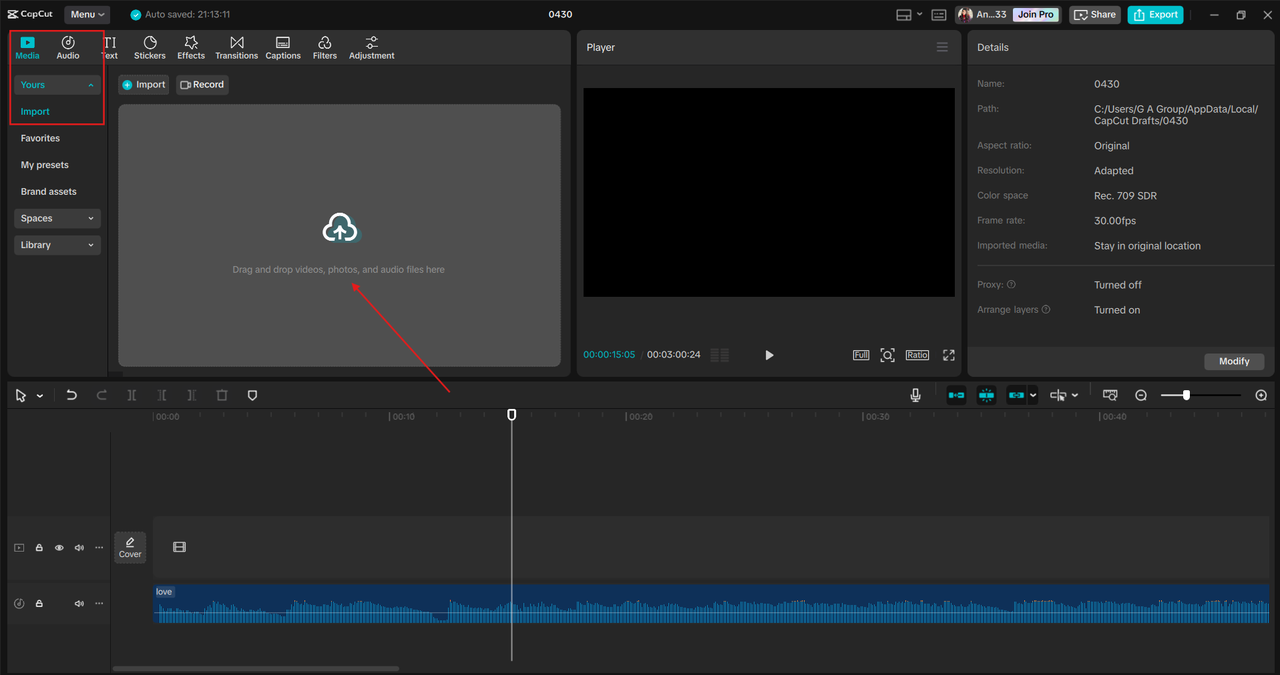
Step 1: Import Your Video or Record Audio
Open CapCut Desktop and start a new project. Drag and drop your video or audio file into the timeline. If you want to record a new voiceover, click the voice recording icon, then speak directly into your mic. Write a short script before you record. It helps keep your audio clean and focused.
Step 2: Apply the Voice Changer Effect
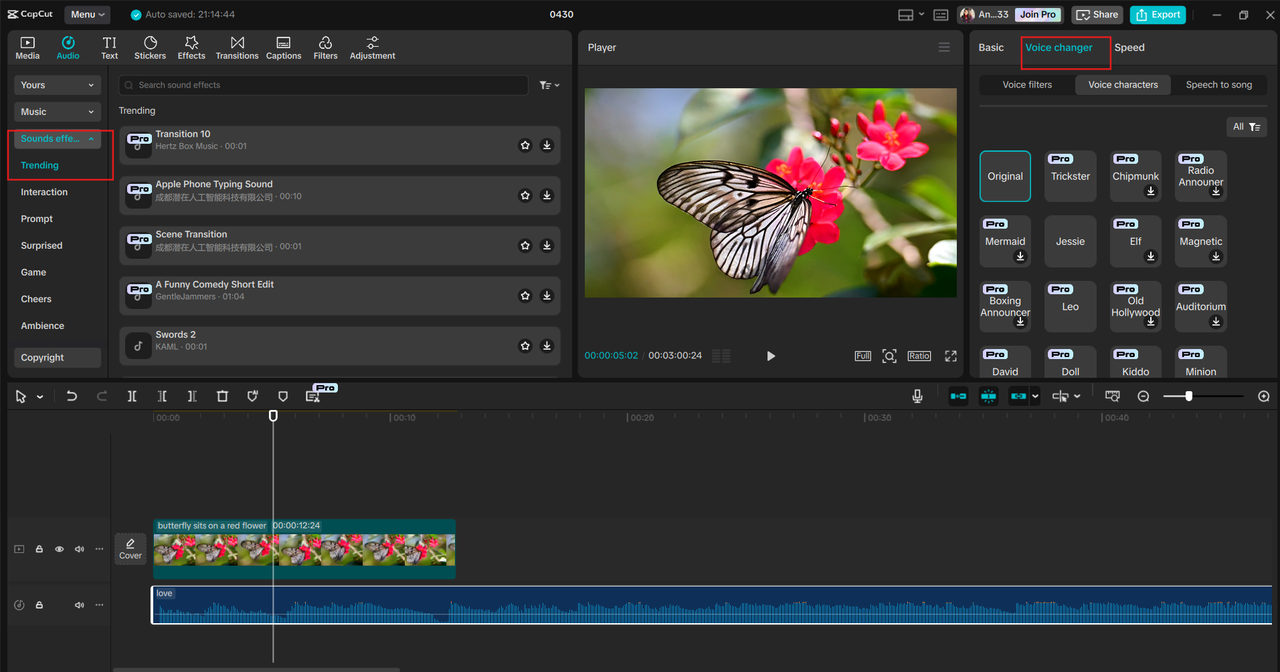
Select the audio track or recorded voice clip on the timeline. Click on the “Voice changer” option in the toolbar. Browse through the list and pick a voice filter that fits your theme—for example, Chipmunk, Deep, Echo, Robot, Scary, etc. Preview it and adjust the pitch or volume if needed. Split the clip and apply effects separately to apply different voice effects to other parts of the same audio.
Step 3: Sync With Video and Add Final Touches
Make sure your edited voice lines up with the visuals in your video.
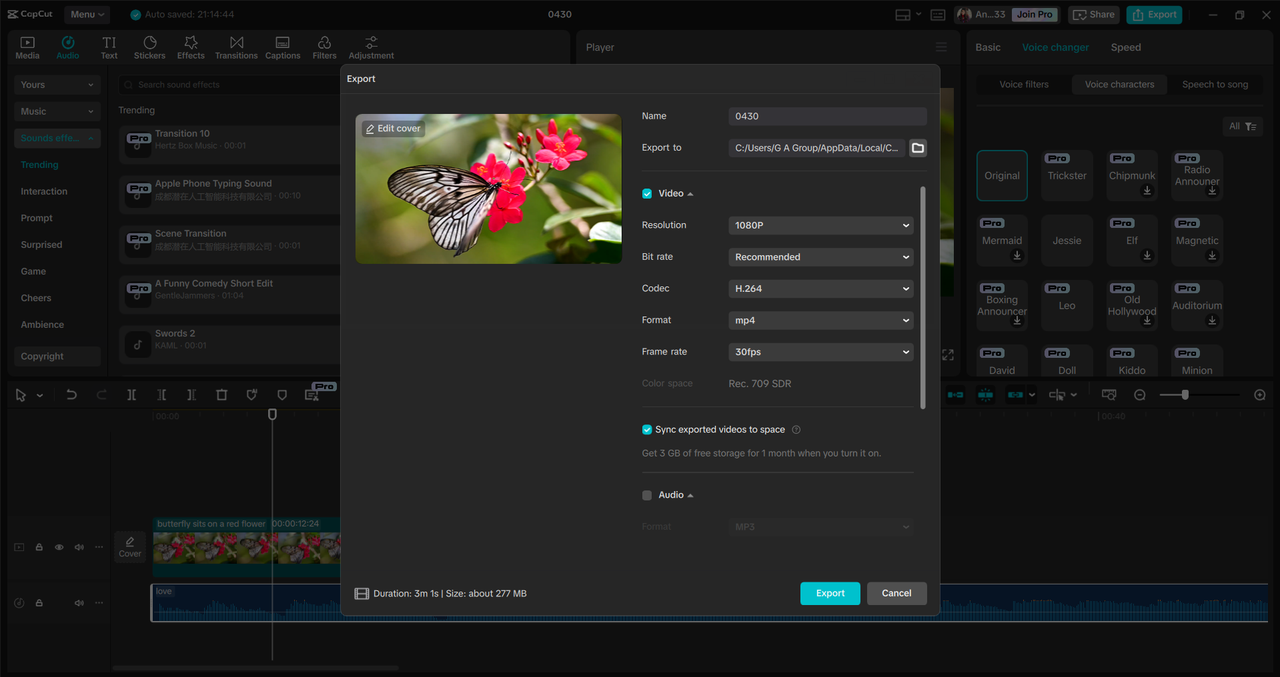
Add background music, sound effects, or subtitles using CapCut’s other tools. Once you’re happy, export the high-quality video and share it on your favorite platform. Use CapCut’s auto-captions to generate subtitles in one click. It makes your video more engaging and accessible.
Bonus Tips to Make Voice-Changing Content Go Viral
Here are a few extra pointers to help your voice-modified content catch attention:
- Keep it short and funny – Quick jokes and punchlines work best.
- Pair with trending audio or memes – Voice effects combined with trending sounds = shareable gold.
- Use facial expressions or animations – Match your voice changes with expressions or filters.
- Try duet or reaction videos – React to someone else’s content using a funny voice overlay.
- Batch create character voices – Record multiple voice lines simultaneously, edit them later with different effects, and save time.
Conclusion
CapCut’s Voice Changer is more than just a fun tool — it’s a way to breathe life into your content. Whether making videos for YouTube, TikTok, Instagram, or even school projects, voice effects can help you entertain, educate, and express yourself in new ways.
The best part? You don’t need a fancy mic, paid plugins, or advanced editing skills. Just record, apply a filter, and you’re good to go. So next time you want to make your audience laugh, surprise them, or keep them listening, remember this trick: change your voice. Ready to try it? Open CapCut Desktop and give the Voice Changer a spin!
Comments